

With the release of version 42.0 on May 19th, we introduced an important change to how the plugin initiates Microsoft Single Sign-On (SSO). While this update improves both reliability and security, it has also led to login issues for some customers – most commonly caused by server-side caching.
What Changed?
Redirection to Microsoft for SSO now consistently routes through a dedicated endpoint
- Pretty permalinks:
https://domain.tld/wpo/sso/start - Without permalinks:
https://domain.tld/?wpo_sso_start=1
This change ensures that all SSO requests follow a predictable path, making it easier to configure caching rules and improving the integrity of the authentication flow.
Version 42.1 that was released on May 21st adds to the consistency by always routing to the dedicated endpoints; Not only when users initiate SSO – for example when they click the SSO button – but also when the plugin initiates SSO – for example when someone attempts to access /wp-admin or when you have configured WPO365’s Intranet mode.
Why Are Some Users Experiencing Login Issues?
Version 42.0 also introduced stricter nonce verification. This enhancement is designed to protect against tampering and replay attacks, but it can result in users being blocked from signing in if nonce validation fails.
In most cases, nonce verification fails due to server-side caching. If the SSO request is cached – even briefly – the nonce included in the request may no longer be valid when it is processed.
This can lead to errors such as: Your login has been tampered with.
How to Fix This
The recommended solution is straightforward: Exclude the SSO start endpoint from server-side caching.
Make sure that your caching layer (e.g. reverse proxy, CDN, WordPress caching plugin) does not cache requests to:
- Pretty permalinks:
https://domain.tld/wpo/sso/start - Without permalinks:
https://domain.tld/?wpo_sso_start=1
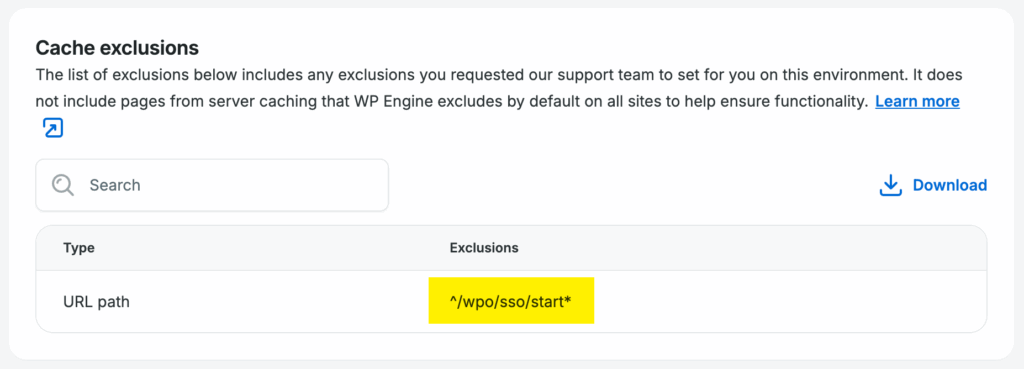
By excluding this single endpoint, you ensure that each SSO request is processed fresh, allowing nonce verification to succeed consistently. Below is a working cache exclusion example for WP Engine.
Alternative Workaround (Not Recommended)
If excluding the endpoint from caching is not possible, you can temporarily disable nonce verification:
- Navigate to the plugin’s Miscellaneous page.
- Enable the option Skip NONCE verification.
- Save the updated configuration.
Important security consideration Disabling nonce verification reduces protection against replay attacks. This risk is especially relevant if an attacker gains access to a workstation where a user has previously authenticated with Microsoft. For this reason, keeping nonce verification enabled is strongly recommended wherever possible.
By applying this small configuration change, you can restore seamless SSO while benefiting from stronger security safeguards.